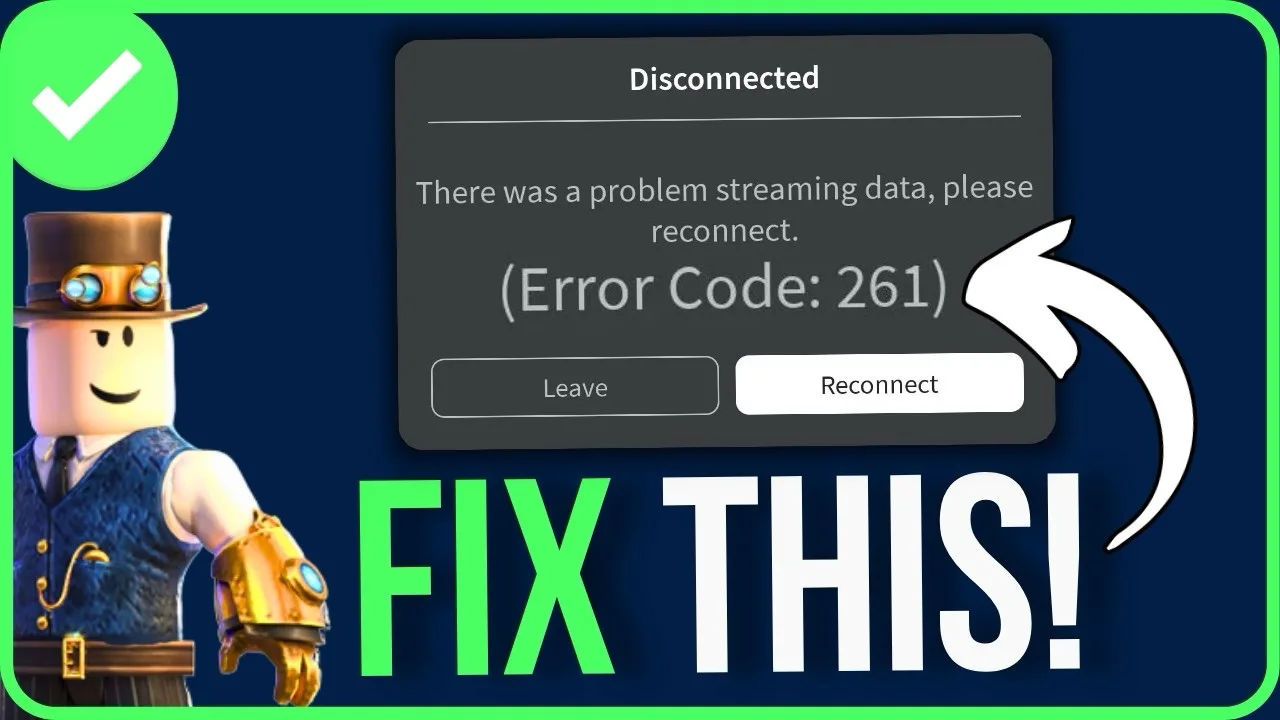
Seeing Roblox Error Code 261 while trying to join a game can be frustrating. This error usually appears when the connection between your device and Roblox is interrupted, preventing you from entering or staying in an experience.
Fortunately, in most cases, the issue can be resolved with a few simple troubleshooting steps. This guide explains the most effective ways to fix Roblox Error Code 261 on both Android and iPhone.
What Is Roblox Error Code 261?
Error Code 261 generally indicates that your device has lost connection with Roblox or is unable to maintain a stable connection to the game’s servers.
The error can happen before a game loads or while you’re already playing.
Common causes include:
- Unstable internet connection
- Temporary Roblox server issues
- Outdated app version
- Corrupted app data
- VPN or proxy interference
- Device-related software problems
Finding the exact cause may take a few minutes, but the solutions below cover the most common situations.
1. Check Your Internet Connection
A weak or unstable network is one of the leading reasons for Error Code 261.
Try these quick fixes:
- Switch from Wi-Fi to mobile data.
- Switch from mobile data to Wi-Fi.
- Move closer to your Wi-Fi router.
- Restart your router if you’re using Wi-Fi.
After reconnecting, open Roblox again and see if the issue is resolved.
2. Refresh Your Network
Refreshing your mobile connection can solve temporary network glitches.
Here’s a simple method:
- Turn on Airplane Mode.
- Wait around 10 seconds.
- Turn Airplane Mode off.
- Allow your phone to reconnect to the network.
- Launch Roblox again.
This refreshes your mobile connection without restarting your phone.
3. Clear Roblox Cache (Android)
If you’re using Android, cached files may occasionally become corrupted.
To clear the cache:
- Open Settings.
- Go to Apps.
- Select Roblox.
- Tap Storage.
- Choose Clear Cache.
If the issue continues, you can also try Force Stop before reopening the app.
Avoid clearing app data unless necessary, as it may reset some local settings.
4. Reinstall Roblox (iPhone and Android)
If clearing the cache doesn’t help, reinstalling the app can remove damaged files.
To reinstall:
- Delete the Roblox app.
- Restart your device.
- Download the latest version from the official app store.
- Sign back into your account.
Using the newest version ensures you have the latest bug fixes and performance improvements.
5. Update the Roblox App
Running an older version of Roblox may cause compatibility issues.
Check for updates by opening:
- Google Play Store (Android)
- Apple App Store (iPhone)
Install any available updates before launching the game again.
6. Restart Your Phone
A simple restart can fix temporary software glitches affecting Roblox.
Restart your device completely, wait for it to boot, then try joining a game again.
7. Turn Off VPN Services
VPNs sometimes interfere with Roblox’s connection to its servers.
If you’re using a VPN:
- Disconnect it temporarily.
- Close Roblox.
- Reopen the app.
- Try joining the game again.
If Roblox works normally after disabling the VPN, the VPN connection may have been causing the issue.
8. Check Roblox Server Status
Sometimes the problem isn’t on your device.
Roblox occasionally performs maintenance or experiences temporary server outages.
If many players are reporting the same error, waiting until the service is restored may be the only solution.
You can check Roblox’s official status page or official social media accounts for updates.
9. Try a Different Roblox Experience
In some cases, the error may affect only one specific game.
Before assuming the app is broken:
- Join another Roblox experience.
- Check whether the issue occurs there as well.
If only one game is affected, the problem may be related to that particular experience rather than your device.
Quick Troubleshooting Checklist
If you’re unsure where to begin, follow this order:
- Check your internet connection.
- Refresh your network using Airplane Mode.
- Update Roblox.
- Clear cache (Android).
- Reinstall the app if needed.
- Disable any VPN.
- Restart your device.
- Check Roblox server status.
These steps solve most connection-related issues.
Frequently Asked Questions
What causes Roblox Error Code 261?
The error is usually related to connection interruptions between your device and Roblox servers.
Does clearing the cache delete my Roblox account?
No. Clearing the app cache does not remove your Roblox account or purchased items.
Can an outdated app cause Error Code 261?
Yes. Running an older version of Roblox may create connection or compatibility problems.
Should I reinstall Roblox?
If basic troubleshooting doesn’t work, reinstalling the app is often an effective solution.
Can Roblox server problems cause this error?
Yes. Temporary server outages or maintenance can sometimes trigger Error Code 261.
Final Thoughts
Roblox Error Code 261 is usually caused by connection issues rather than problems with your account. In most situations, checking your network, updating the app, clearing the cache, or reinstalling Roblox will solve the issue.
If none of these solutions work, the problem may be related to Roblox’s servers or a specific game. Waiting for an official fix or trying another experience can often help until the service returns to normal.